This guide walks you through connecting Streamline Connector to n8n and running your first workflow.
Before You Start
Make sure you have:
A Shopify store with Streamline Connector installed
An active n8n instance
Access to your Streamline Connector credentials
Step 1: Install and Sync
Install the Streamline Connector app on your Shopify store.
Allow the app time to complete its initial data sync.
Sync time depends on store size and catalog volume.
Once the sync is complete, you can begin building workflows.
Step 2: Connect Streamline Connector to n8n
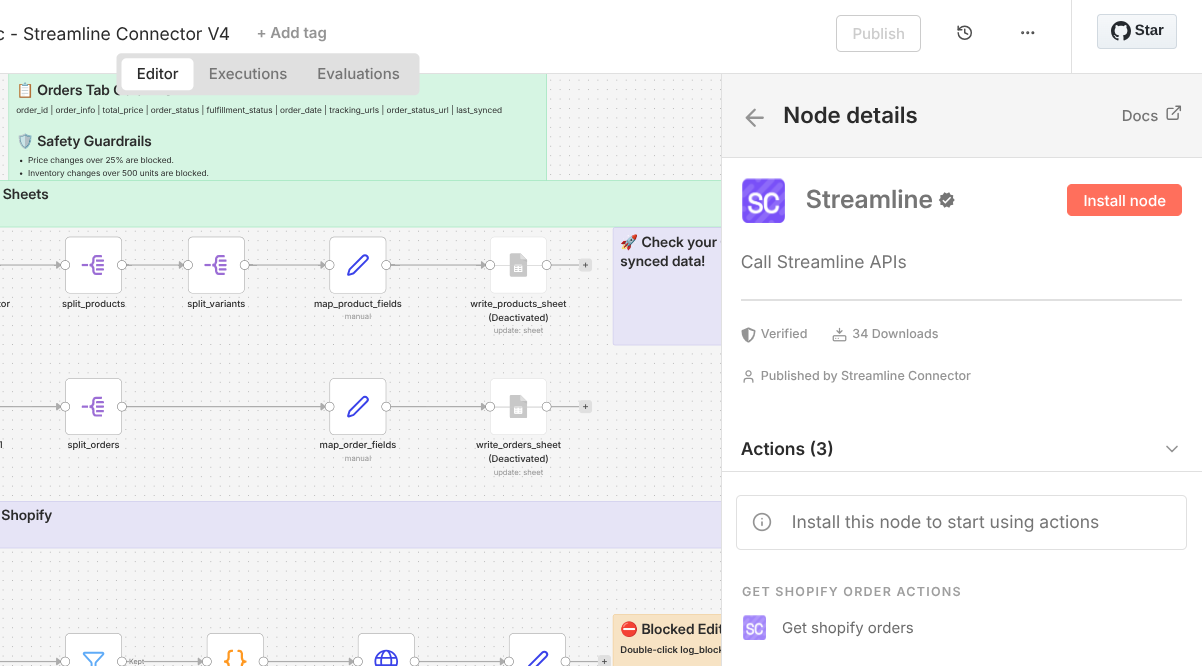
Open your n8n instance.
Create a new workflow.
Add the Streamline Connector Community node.
In the Streamline Connector app, copy your credentials.
Paste the credentials into the Streamline Connector node in n8n.
Save the node.
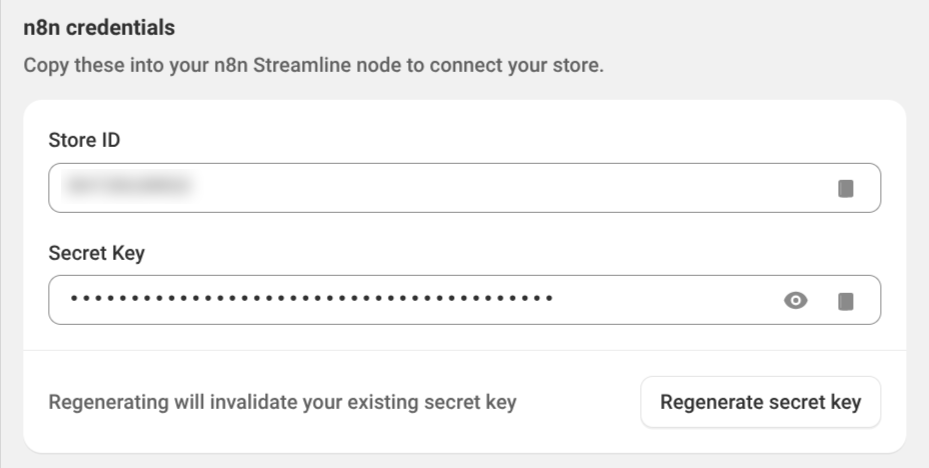
You are now connected.
- All available action endpoints are immediately accessible.
- No private apps.
- No scope approvals.
- No Shopify API configuration.
Step 3: Create Your First Workflow Using a Template
Import a Template
Choose a Streamline Connector template.
The most commonly used template is Shopify to Google Sheets.
Download the template and import it into your n8n instance.
Step 4: Configure the Workflow
Open the Streamline Connector node in the imported workflow.
Add your Streamline Connector credentials if they are not already set.
Connect your Google account in the Google Sheets node.
Copy the provided Google Sheets template.
Update the Google Sheets node to point to your copied sheet.
Step 5: Run the Workflow
Click Run in n8n.
Shopify data will begin flowing into Google Sheets.
Your workflow is now active and ready to extend.
Need Help?
If you need help building a workflow or run into issues, contact:
support@streamlineconnector.com
Our team will help you get unstuck quickly.
Was this article helpful?
That’s Great!
Thank you for your feedback
Sorry! We couldn't be helpful
Thank you for your feedback
Feedback sent
We appreciate your effort and will try to fix the article