This guide explains how to install and connect the Streamline Connector Community node in your n8n instance.
Prerequisites
Before starting, confirm the following:
You have access to an active n8n instance, cloud or self-hosted.
You're on the latest version of n8n (v2.8.2 or higher).
The Streamline Connector app is installed and has completed its initial data sync.
You have access to your Streamline Connector API credentials.
No private apps. No scope approvals.
Step 1: Install the Community Node
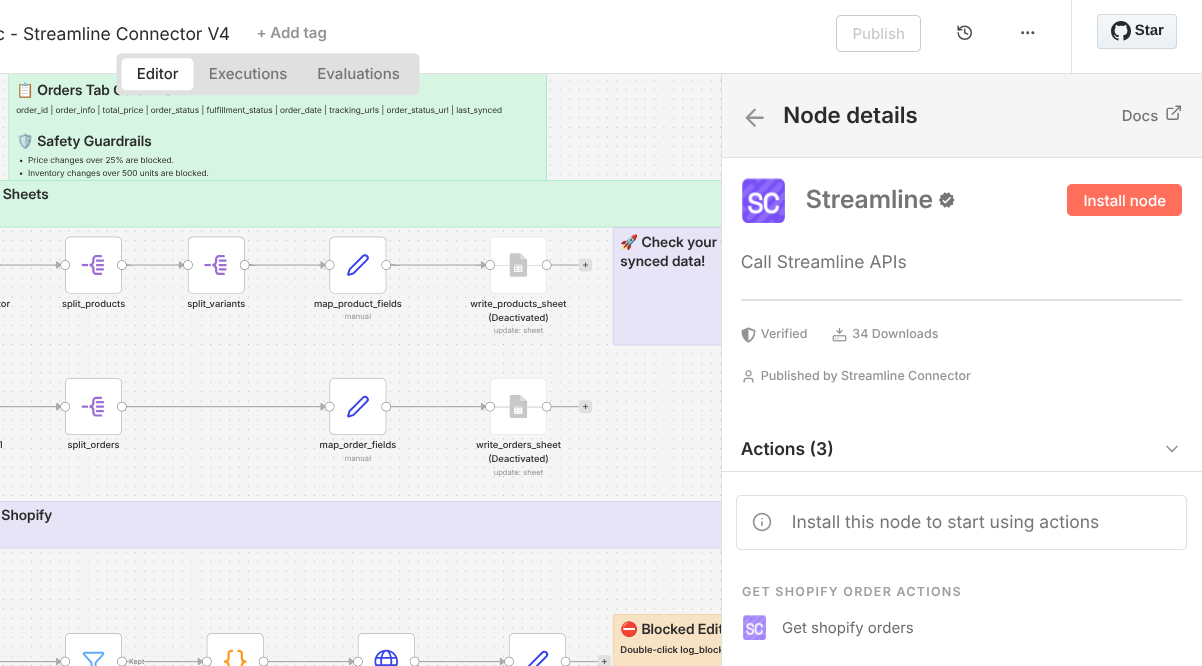
Log in to your n8n instance.
Click '+'
Search for Streamline
Click Install.
Restart n8n if prompted.
Once installed, the node will be available in the workflow builder.
Step 2: Add the Node to a Workflow
Open an existing workflow or create a new one.
Click Add Node.
Search for Streamline.
Select Streamline Connector and add it to the canvas.
Step 3: Add Credentials
Open the Streamline Connector node.
In the Credentials section, click Create New.
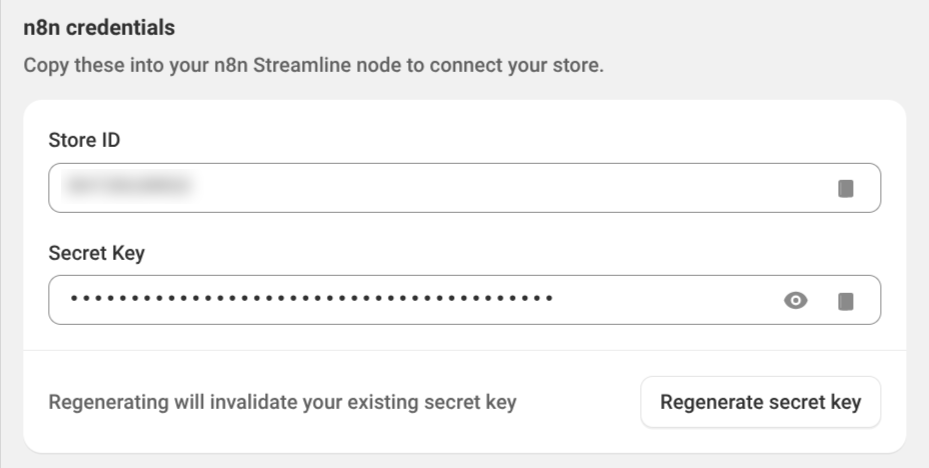
Copy your API credentials from the Streamline Connector app. (See image below).
Paste them into the credential fields in n8n.
Save the credentials.
You are now authenticated.
Step 4: Test the Connection
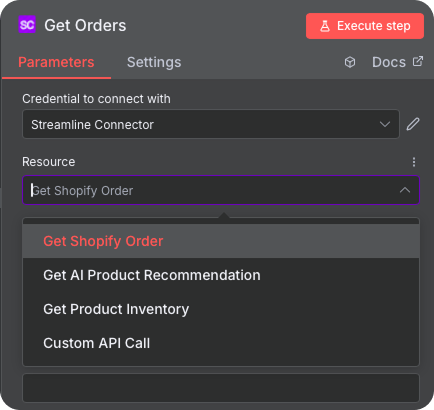
Select any available action or endpoint in the node.
Click Execute Node.
Confirm the node returns data without errors.
If execution succeeds, the connection is complete.
Next Steps
Once connected, all action endpoints are immediately available. You can begin building workflows such as:
Shopify to Google Sheets syncs
Automated reporting pipelines
Event-driven workflows using Shopify data
No additional configuration is required.
Troubleshooting
Node not visible: confirm
Streamlineis installed and restart n8n.Auth errors: re-copy credentials from the app and save again.
Execution errors: ensure the Streamline Connector app has finished its initial sync.
Support
For help with setup or workflows, contact:
support@streamlineconnector.com
Was this article helpful?
That’s Great!
Thank you for your feedback
Sorry! We couldn't be helpful
Thank you for your feedback
Feedback sent
We appreciate your effort and will try to fix the article